
The world of cloud computing is changing fast, that is a fact. Some changes have a more significant impact, as was the case with the rise of AWS Graviton processors.
The whole tech industry is experiencing the growing adoption of ARM architecture, so why should it not be the case with the Cloud as well?
This article focuses on the impact of AWS Graviton on the Cloud offering, the shift towards the ARM architecture, and how Clearview is helping clients jump on the Graviton train and save on costs up to 20%.
Key points on AWS Graviton
- AWS Graviton processors are becoming popular because of their superior performance and energy efficiency in cloud environments which reduces your carbon footprint,
- Adapting the ARM architecture requires data migration or possible code improvements before benefiting from the superior improvements in both cost and performance.
The Rise of AWS Graviton
Understanding AWS Graviton Processors
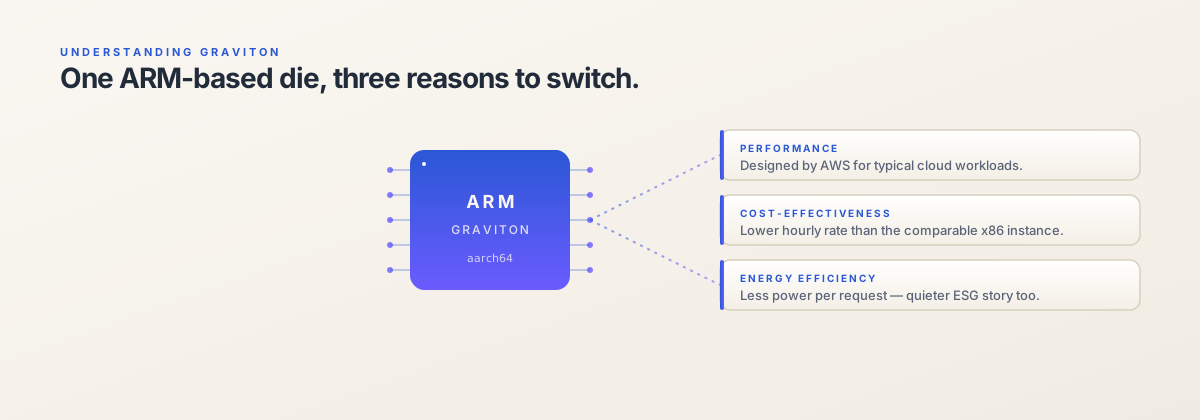
AWS Graviton processors are powered by ARM architecture, enabling performance and cost optimizations, which represent a significant advancement in cloud computing, compared to traditional x86 processors.
Graviton processors are optimized for Cloud workloads with the following benefits:
- Large L1 and L2 caches for every virtual central processing unit (vCPU), meaning that most of your workload never burdens RAM,
- Every virtual CPU is a physical core, meaning more isolation between virtual CPUs,
- Cores are connected in a fast mesh with ~2TB/s of bisection bandwidth, which allows applications to move very quickly from core to core,
- Graviton’s RAM architecture means you don’t need to worry about application memory allocation, or which cores are running the application.
Generations of AWS Graviton
Graviton processors come in various generations with each generation offering various advances in processing power and efficiency.
Graviton
The first generation ARM architecture-based, known as A1 type, Graviton-powered EC2 instances were launched in 2018. Not every region is still providing this first-generation instance type. Use the following awscli command to check if a region supports the A1 instance type.
aws ec2 describe-instance-type-offerings \
    --location-type "availability-zone" \
    --filters Name=location,Values=us-east-2a \
    --region us-east-2 \
    --query "InstanceTypeOfferings[*].[InstanceType]" \
    --output text \
    --profile default | sort | grep a1
This processor features:
- 64-bit ARM Neoverse cores,
- The instances are up to 40% less expensive than the same number of vCPUs and DRAM available in other instance types.
Graviton 2
Launched in 2019 it represents the second generation of AWS Graviton processes. Graviton2-based instance types offer up to 40% better price performance than fifth-generation instances.
Graviton 2 Instance types
We now have 12 instance families (M6g, M6gd, C6g, C6gd, C6gn, R6g, R6gd, T4g, X2gd, Im4gn, Is4gen, and G5g) that are powered by AWS Graviton2 processors that provide significant price performance benefits for a wide range of workloads.
Graviton 3
Launched in 2022, it is the third and latest generation that is generally available. When compared to AWS Graviton2 processors it provides:
- up to 25% better computing performance,
- up to 2x better floating-point performance,
- up to 2x faster crypto performance, and
- up to 3x better ML performance,
- support for bfloat16,
- and features the latest DDR5 memory, which provides 50% more memory bandwidth compared to DDR4.
- up to 60% less energy usage for the same performance than comparable EC2 instances.
Graviton 3 instance types
All 7th generation instance types containing “g” means it is based on AWS Graviton 3, the silicon designed by AWS. Examples:
- C7g, C7gd, C7gn: the “C” instance family is designed for compute-intensive workloads,
- M7g, M7gd: “G” instance family is designed for general-purpose workloads with balanced computing, memory, and networking,
- R7g, R7gd: The “R” instance family is designed for memory-intensive workloads.
Graviton 4
Launched in late November 2023 Graviton 4 represents the fourth generation and it is still in preview only, with general availability planned in Q1 of 2024. When compared to Graviton3 processors it provides:
- up to 30% better computing performance,
- 50% more cores,
- 75% more memory bandwidth.
Graviton4 will be available in memory-optimized Amazon EC2 R8g instances, which are currently in preview only. R8g instances offer larger instance sizes with up to 3x more vCPUs and 3x more memory than current generation R7g instances. To learn more about Graviton4-based R8g instances, visit this link.
Switch your AWS Services to Graviton
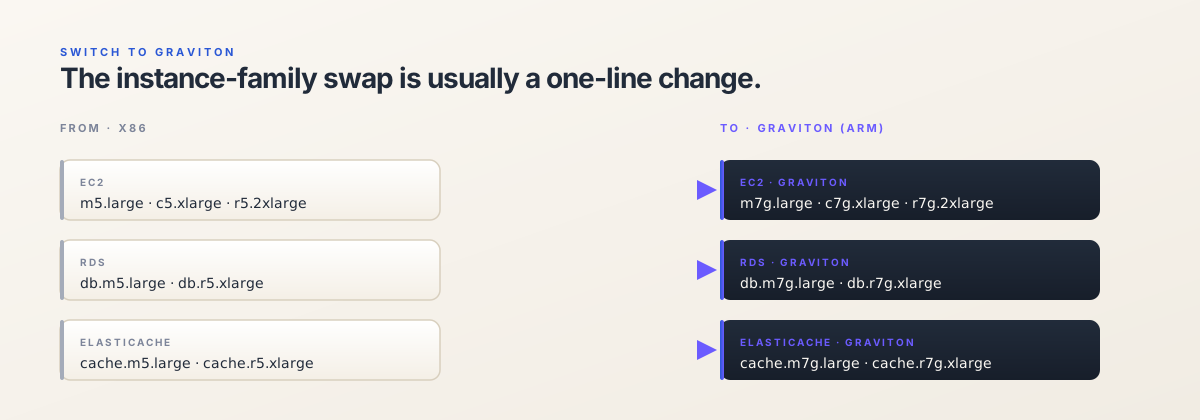
Here we will describe which services we have switched over to AWS Graviton.
Some services can be switched with a few clicks, while others require a full data migration following best practices.
AWS EC2
Following is a tutorial on how we switched EC2 instances. Please note that t4g is run on Graviton 2. Migrating our NodeJScode to be compatible with ARM architecture meant upgrading a few packages only.
Note: do not forget to set your awscli profile as in all of these examples the default one is used.
Find ARM LTS Ubuntu Images
For the latest LTS which is 22.04 LTS (Jammy Jellyfish), currently.
aws ec2 describe-images \
    --filters "Name=name,Values=ubuntu/images/hvm-ssd/ubuntu-jammy-22.04-arm64-server-*" "Name=architecture,Values=arm64" \
    --query "sort_by(Images, &CreationDate)[].[Name, ImageId, Architecture]"  \
    --output text \
    --region us-east-1 \
    --profile=default
This command will show you the IDs of the images that support the ARM architecture. Choose one and set it at the next step.
Set AMI ID
As the AMI ID has been found in the previous command, we need to save it to a variable.
AMI_ID=ami-02ddaf75821f25213
List EC2 Key Pairs
The following commands will show keys that were added previously. If you get an empty result you need to add your public SSH key.
aws ec2 describe-key-pairs \
  --region us-east-1 \
  --profile=default
Find the Availability Zone
The zone is directly connected to the subnet.
aws ec2 describe-instance-type-offerings \
--location-type availability-zone \
    --filters Name=instance-type,Values=t4g.small \
    --region us-east-1 \
    --profile=default
Note: This step is very important as you need to find the what availability zone supports your instance size.
Find the Subnet and Security Group
We need to find the correct Subnet and SG.
List Security Groups
aws ec2 describe-security-groups \
    --query "SecurityGroups[*].{Name:GroupName,ID:GroupId}" \
    --region us-east-1 \
    --profile=default
List subnets
aws ec2 describe-subnets \
    --region us-east-1 \
    --profile=default
Note: Find the correct subnet that is used by your old EC2 instance.
Create the EC2 Instance
Please note that the following command is an example only and that you need to change the values for:
- the key name,
- the subnet ID,
- the security group ID,
- set your tags,
- use your profile name.
aws ec2 run-instances --image-id $AMI_ID --instance-type t4g.small  \
    --key-name nedim \
    --subnet-id subnet-000000000000000 \
    --security-group-ids sg-00000000000000000 \
    --associate-public-ip-address \
    --tag-specifications 'ResourceType=instance,Tags=[{Key=Name,Value=ubuntu-test-graviton}]' \
    --region us-east-1 \
    --profile=default
Prepare the image
Connect to the VM, and run the system upgrade.
New Server Configuration with Ansible
Since we used Ansible to set up the old server the process of setting up an identically configured server was a piece of cake. All we had to do was change the hostname in the host inventory file add the new server and rerun the playbooks.
Volume size
Make sure the new disk volume is identical to the size of the old server’s disk volume as we will copy over data from the old server to the new one.
Data Migration
Using RSYNC, copy over the data from the old server to the new Graviton-based one, using the SSH protocol.
rsync -avz -e ssh /var/www/ root@enew-server.compute-1.amazonaws.com:/var/www/
Note: This data migration does not guarantee that the code will work 100%, you will need to deploy and build the code again to be sure it works as expected. In our case, we needed to upgrade several NodeJS packages.
AWS RDS
With RDS instances no migration is necessary and you can take the easy way of just modifying the instance class of your instances if your database engine version supports it.
Determine if the current database version meets the minimum required version for moving to Graviton2.
Version supporting Graviton:
- MySQL: 8.0.17 and higher,
- PostgreSQL: 12.3, 13 and higher,
- MariaDB: 10.4.13, 10.5 and higher.
If your RDS instance isn’t at a version supported by Graviton2, you need to upgrade to a supported version.
AWS ElastiCache for Redis
Migrating Amazon Elasticache for Redis and Memcached to Graviton2-based instances offers a smooth transition, only a change of instance type is required, with a performance improvement of up to 45%, all at a 20% lower cost compared to similar x86-based instances.
The Beginning of a New Age in Cloud Computing
In conclusion, the rise of AWS Graviton and ARM architecture represents a change in cloud computing that impacts the whole IT industry. These technologies bring together improved performance, cost-effectiveness, and energy efficiency. As more organizations adopt these technologies, we can expect a future where the flexibility of ARM architecture and the efficiency of Graviton processors set the standard for cloud infrastructure.
Therefore, do not miss the chance to make the switch and be part of the new standard.