
Monitor and Control Amazon Cloud Costs with Terraform
For every Cloud project, you need to set budgets and alerts with Terraform
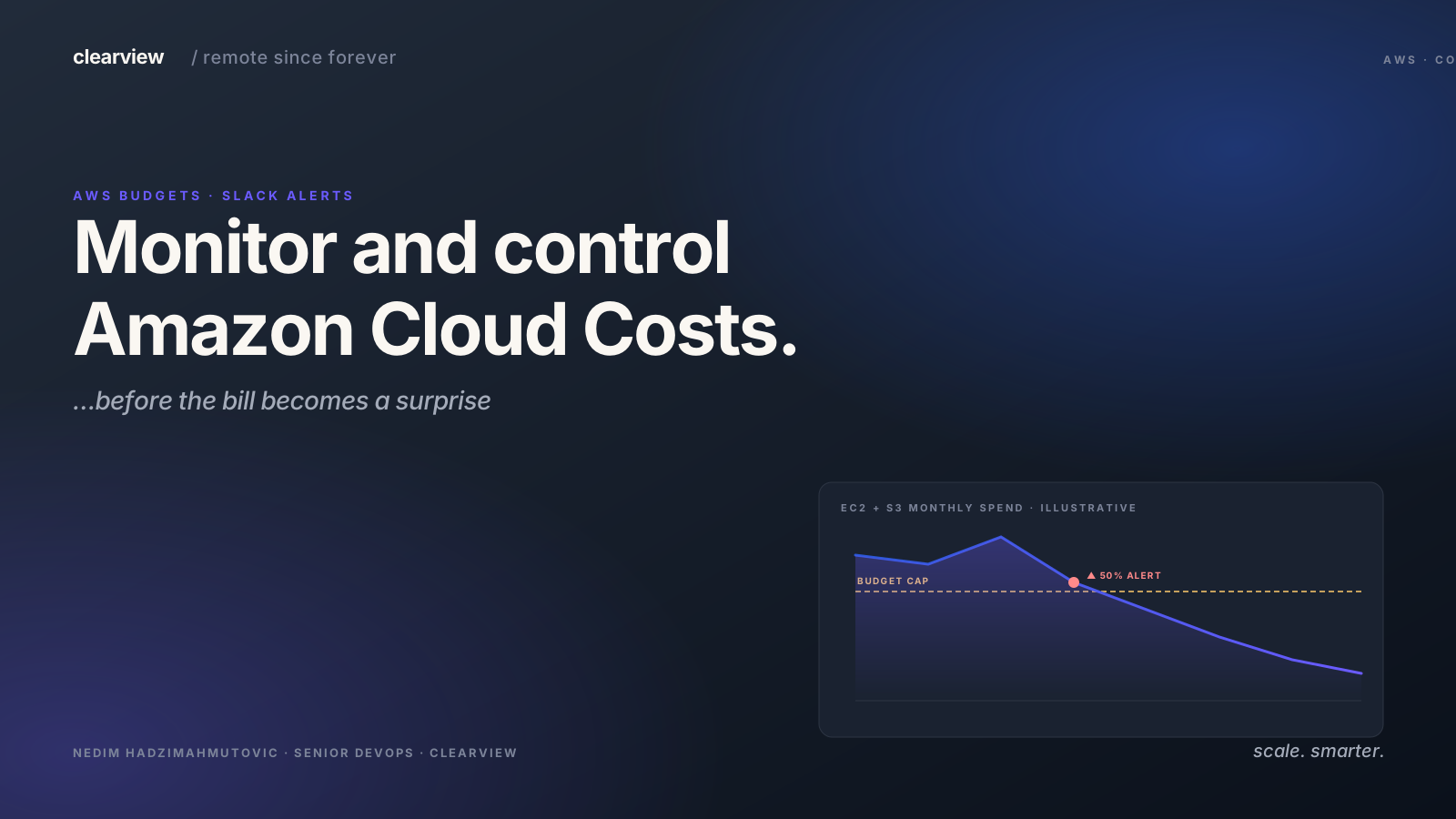
Why set up a budget for your cloud account?
If you wonder why most startups fail it is simple, they run out of money and there have been many horror stories about crazy big cloud bills.
At Clearview, when we put a new client on the Cloud, we know they will get a bill eventually. It’s our responsibility to make sure that the bill will not be a big and sudden surprise.
Setting up the budgets
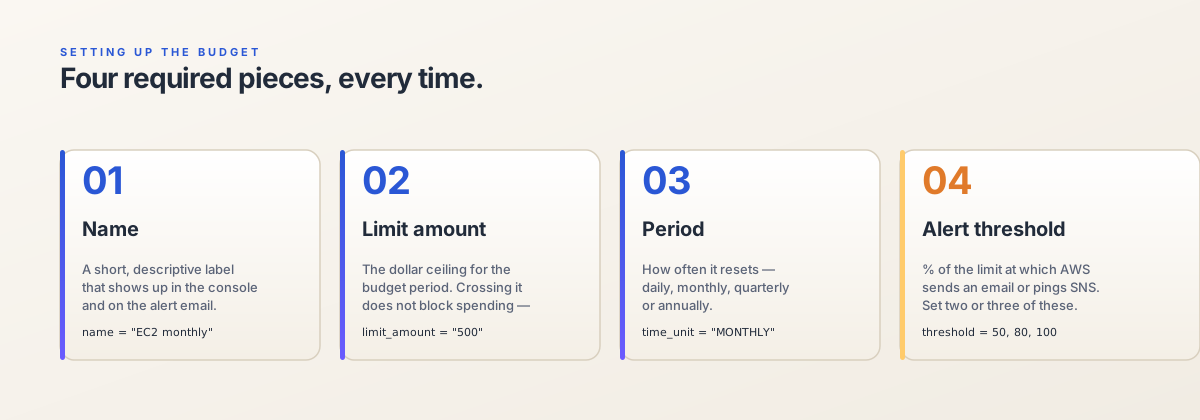
The first step is to set budgets and alerts. We usually set:
- The Account wide budget,
- The Most used service budget,
- The Most important tag budget.
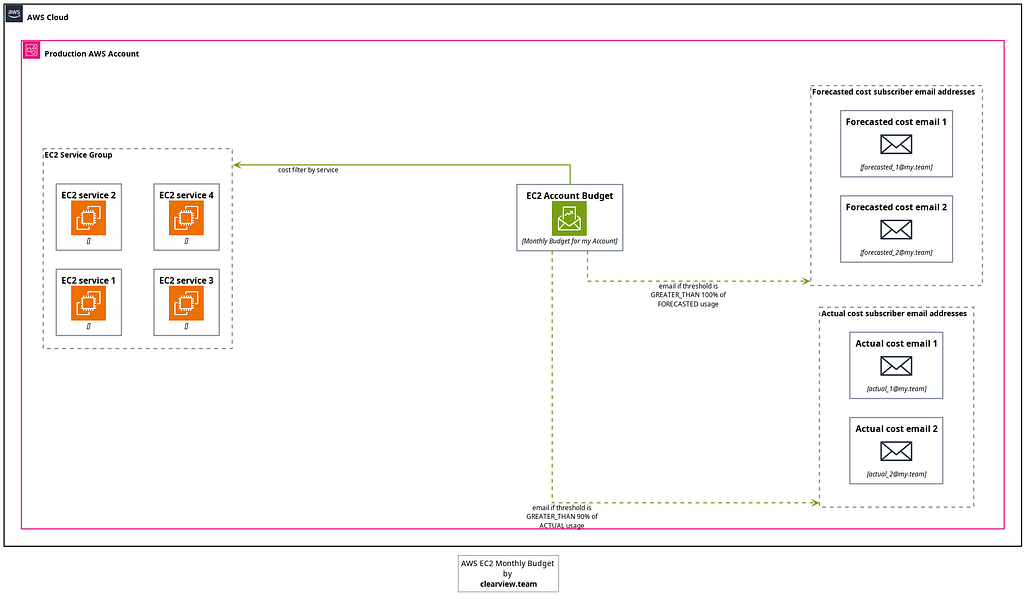
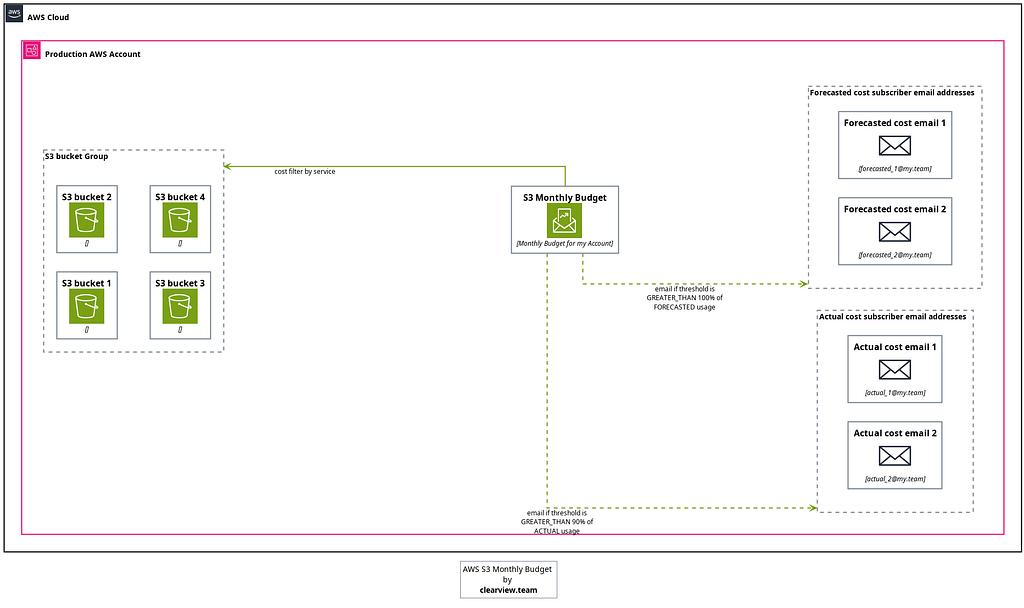
Every budget sends out an email notification when the budget cost threshold is reached, in these two cases:
- The ACTUAL cost which will be triggered once that amount has already been spent,
- The FORECASTED cost notification will be triggered earlier as the cost is based on prediction based on your past usage.
As we are a tech company the budgets are set using Terraform and in the next section, you can find diagrams and code samples that explain how budgets and notifications work.
Monthly Account Budget
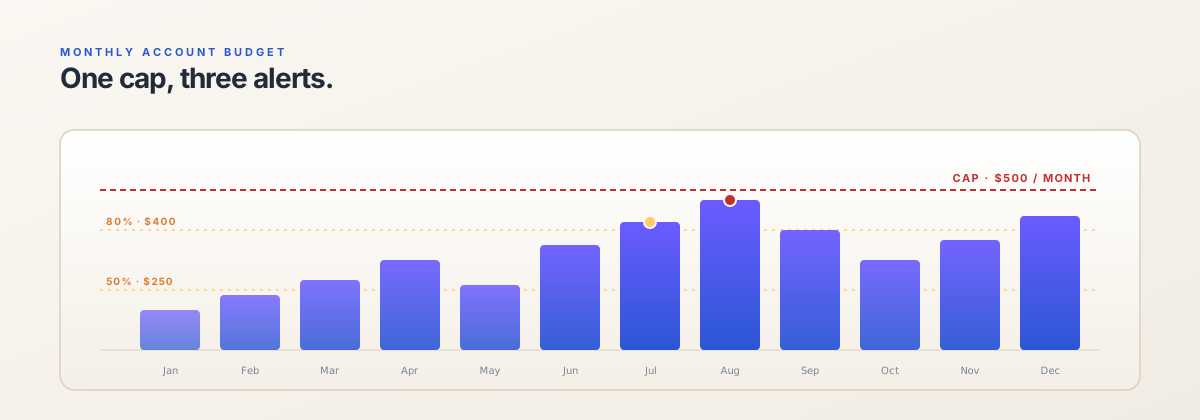
This budget tracks account-wide costs.
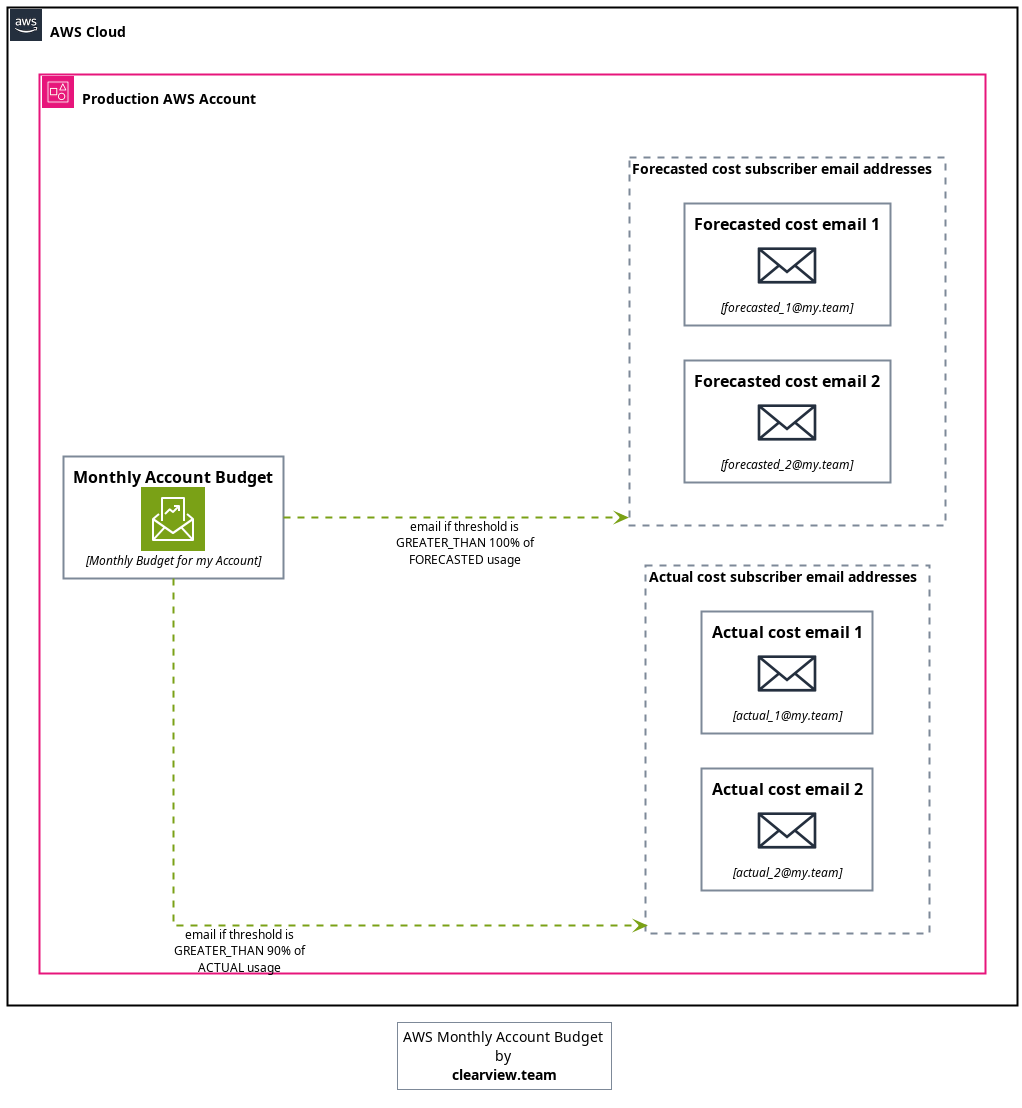
resource "aws_budgets_budget" "monthly_account_budget" {
  name         = "Monthly Budget for my Account"
  budget_type  = "COST"
  limit_amount = "500"
  limit_unit   = "USD"
  time_unit    = "MONTHLY"

  notification {
    comparison_operator        = "GREATER_THAN"
    threshold                  = 90
    threshold_type             = "PERCENTAGE"
    notification_type          = "ACTUAL"
    subscriber_email_addresses = ["email@my.team"]
  }

  notification {
    comparison_operator        = "GREATER_THAN"
    threshold                  = 100
    threshold_type             = "PERCENTAGE"
    notification_type          = "FORECASTED"
    subscriber_email_addresses = ["email@my.team"]
  }
}
The notification block arguments
Each notification block inside aws_budgets_budget controls one
alert. The five arguments the AWS provider expects are:
comparison_operator— one ofGREATER_THAN,LESS_THAN, orEQUAL_TO. For a spend budget you almost always useGREATER_THAN.threshold— a number. Compared against the budgeted amount.threshold_type—PERCENTAGEorABSOLUTE_VALUE. Percentage is easier to reason about because you don't have to rewrite the block when the budget limit changes.notification_type—ACTUAL(the current spend) orFORECASTED(AWS's prediction based on past usage). Set one of each per budget so you get both an early warning and a real breach alert.subscriber_email_addresses— a list of email strings. This is where the alert lands. Every address in the list receives a copy. Note: it is a Terraform list, not a comma-separated string, so use["a@x", "b@x"]shape not"a@x, b@x".
There are two adjacent arguments that this example does not use but you might reach for:
subscriber_sns_topic_arns— send the notification to an SNS topic instead of (or in addition to) email. Useful when you want the alert to fan out into Slack via an SNS→Lambda hop.subscriber_typeon the oldernotificationshape has been replaced by the threesubscriber_*list arguments; you should not need it on modern provider versions (hashicorp/aws >= 4.0).
Full provider docs: aws_budgets_budget#notification.
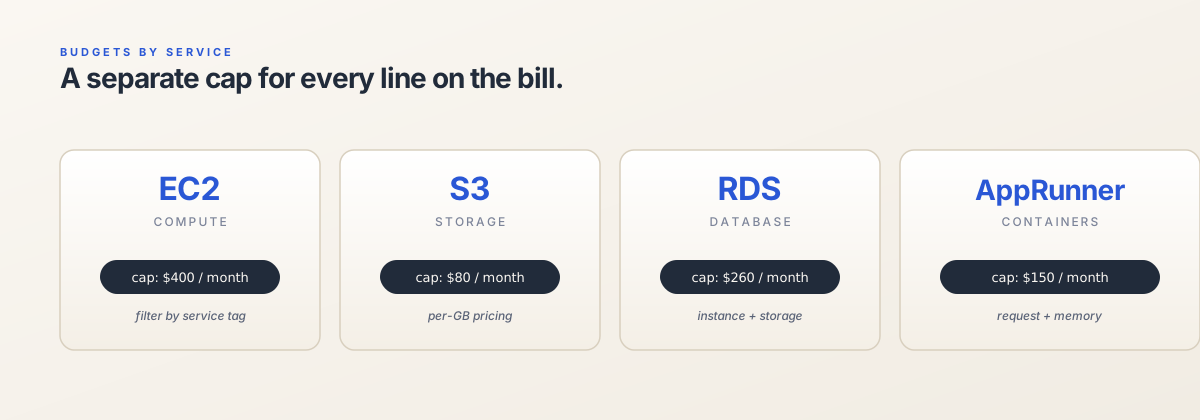
Budgets by Service
EC2 Monthly Budget
This budget will track costs for EC2 services only.
resource "aws_budgets_budget" "ec2_monthly_budget" {
  name         = "My EC2 Monthly Budget"
  budget_type  = "COST"
  limit_amount = "400"
  limit_unit   = "USD"
  time_unit    = "MONTHLY"

  cost_filter {
    name = "Service"
    values = [
      "Amazon Elastic Compute Cloud - Compute",
    ]
  }

  notification {
    comparison_operator        = "GREATER_THAN"
    threshold                  = 90
    threshold_type             = "PERCENTAGE"
    notification_type          = "ACTUAL"
    subscriber_email_addresses = ["email@my.team"]
  }

  notification {
    comparison_operator        = "GREATER_THAN"
    threshold                  = 100
    threshold_type             = "PERCENTAGE"
    notification_type          = "FORECASTED"
    subscriber_email_addresses = ["email@my.team"]
  }
}
S3 Monthly Budget
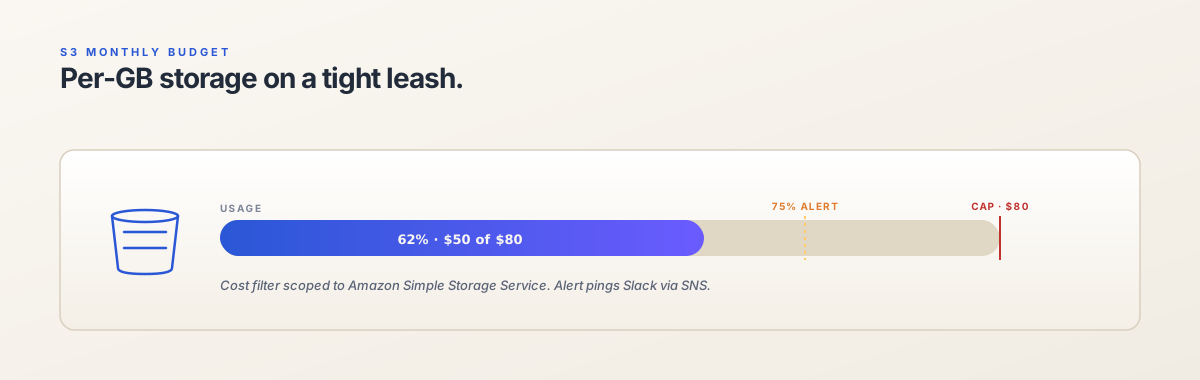
This budget will track costs for S3 buckets only.
resource "aws_budgets_budget" "s3_monthly_budget" {
  name         = "My S3 Monthly Budget"
  budget_type  = "COST"
  limit_amount = "100"
  limit_unit   = "USD"
  time_unit    = "MONTHLY"

  cost_filter {
    name = "Service"
    values = [
      "Amazon Simple Storage Service",
    ]
  }

  notification {
    comparison_operator        = "GREATER_THAN"
    threshold                  = 90
    threshold_type             = "PERCENTAGE"
    notification_type          = "ACTUAL"
    subscriber_email_addresses = ["email@my.team"]
  }

  notification {
    comparison_operator        = "GREATER_THAN"
    threshold                  = 110
    threshold_type             = "PERCENTAGE"
    notification_type          = "FORECASTED"
    subscriber_email_addresses = ["email@my.team"]
  }
}
AppRunner Monthly Budget
This budget will track costs for AppRunner services only.
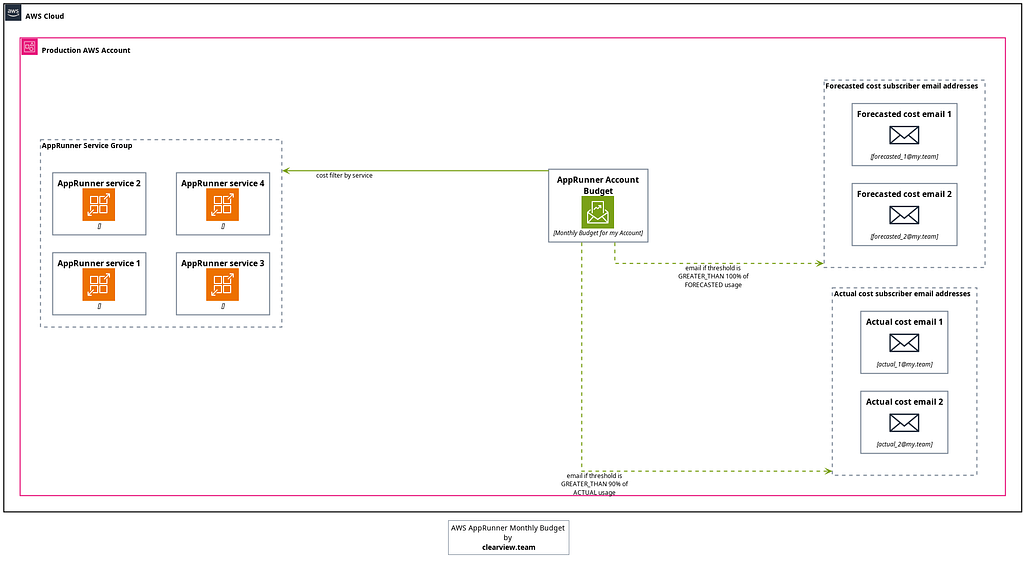
resource "aws_budgets_budget" "apprunner_monthly_budget" {
  name         = "My AppRunner Monthly Budget"
  budget_type  = "COST"
  limit_amount = "100"
  limit_unit   = "USD"
  time_unit    = "MONTHLY"

  cost_filter {
    name = "Service"
    values = [
      "AWS App Runner",
    ]
  }

  notification {
    comparison_operator        = "GREATER_THAN"
    threshold                  = 90
    threshold_type             = "PERCENTAGE"
    notification_type          = "ACTUAL"
    subscriber_email_addresses = ["email@my.team"]
  }

  notification {
    comparison_operator        = "GREATER_THAN"
    threshold                  = 110
    threshold_type             = "PERCENTAGE"
    notification_type          = "FORECASTED"
    subscriber_email_addresses = ["email@my.team"]
  }
}
Budgets based on tag filtering
Production Tag Monthly Budget
This budget will group multiple types of service based on the tag, in this case, the production tag is used.
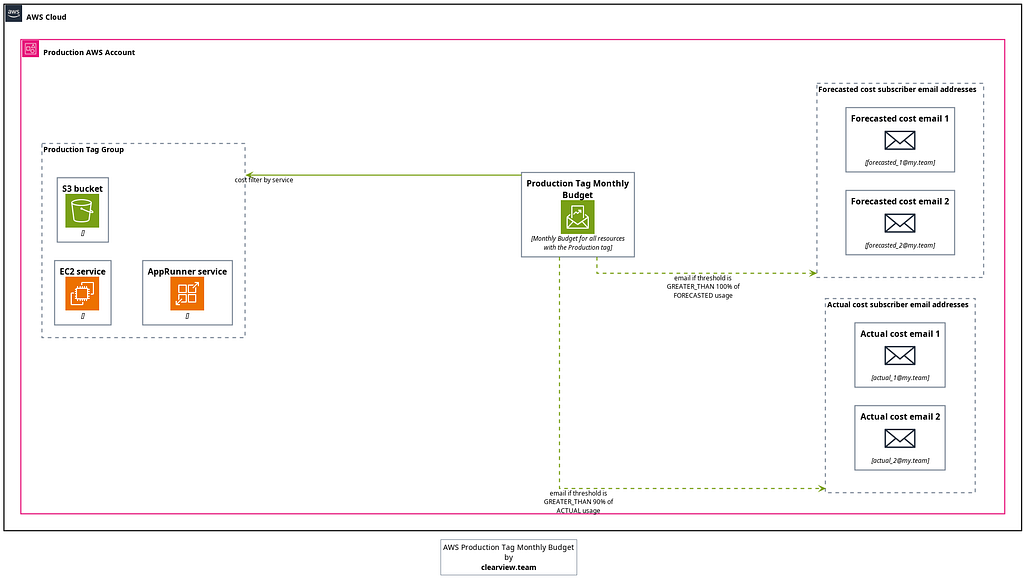
Links
Closing
This article explained the importance of setting a cloud budget and then demonstrated how to do it programmatically. Not only that, we went a step further and created nice diagrams for each budget so that it is easier for every reader to imagine the setup.
We hope this article finds its way and helps you avoid unnecessary cloud costs.